Connect Bookwhen to Reservd
Keep running your classes in Bookwhen. Choose which ones show on Reservd and how many places each one sells here. Your classes come across by themselves and stay up to date, and a class that fills in Bookwhen stops selling on Reservd. It takes about ten minutes: you make a token in Bookwhen and paste it into Reservd.
What comes across
- Every dated class and event for the days ahead (4 weeks to start with, up to 90 days)
- Its name, description, date, start and finish time
- The leader, shown as the instructor
- The single ticket price, as the drop-in price (you can change it on Reservd)
- How full it is, so Reservd never sells more than Bookwhen has free
- Changes: a moved class moves on Reservd, and a cancelled or deleted one is cancelled with customers refunded
What stays in Bookwhen
- Classes you haven't ticked, if you chose to pick them
- Courses that can only be booked as a whole
- All-day events and anything over 12 hours
- Your customers and who's booked in Bookwhen (Bookwhen doesn't share them)
- Class passes and memberships sold in Bookwhen
- 1
Connect Stripe on Reservd
Customers pay by card on Reservd when they book, and the money goes straight to your bank. In your Reservd dashboard, open Bookwhen (it's under Getting found, and also linked from Import and from Settings, How customers book) and press Connect Stripe. Once Stripe says yes, the form to connect Bookwhen appears.
- 2
Open the Bookwhen API in Bookwhen
Sign in to Bookwhen on a computer as the account owner. In the menu on the left, choose Settings, then Integrations. Next to Bookwhen API, choose View integration.
- 3
Make a permission for Reservd
Choose Create a new API access permission. Call it Reservd. In the options, make sure it can see your events and tickets (leave the rest as they are), then choose Create.
- 4
Make a token set
Choose View permission set. Under Token sets, choose Add a new token set, call it Reservd and choose Create.
- 5
Copy the token
Choose View under Token sets. Your token is the long code under Tokens. Copy it. Never send it to anyone, including us.
- 6
Paste it into Reservd
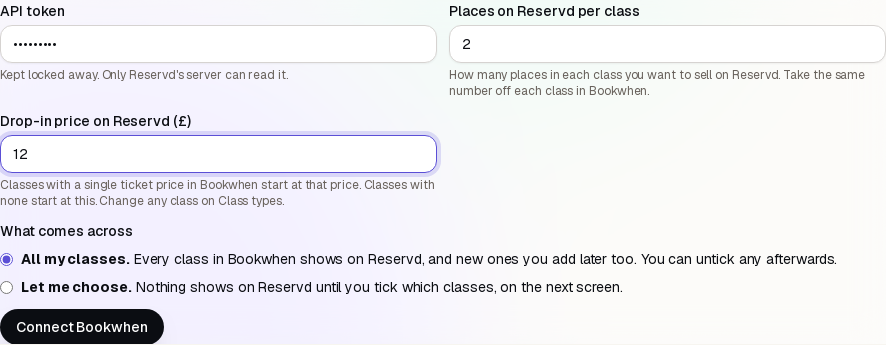
Back on the Bookwhen page in Reservd, paste the token. Then choose:Places on Reservd per class: how many places in each class you want to sell on Reservd, like 2 or 3.Drop-in price: used for any class that doesn't have a single ticket price in Bookwhen.What comes across: All my classes, or Let me choose to pick them one by one first.Press Connect Bookwhen.
- 7
Tick the classes you want on Reservd
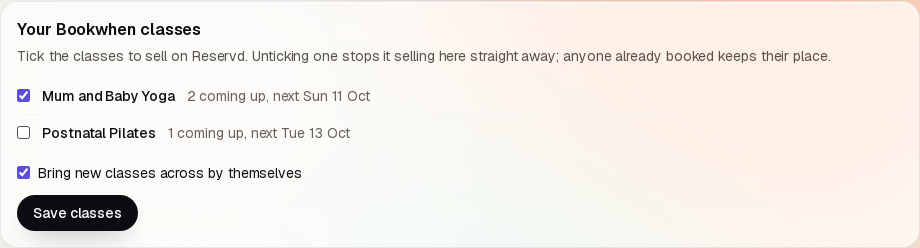
Under Your Bookwhen classes you'll see every class in Bookwhen by name, with how many are coming up. Tick the ones to sell on Reservd and press Save classes. Untick one any time to stop selling it (anyone already booked keeps their place). Tick Bring new classes across by themselves if you'd like classes you add in Bookwhen later to appear on Reservd without asking.
- 8
Take the places off in Bookwhen
For each class you ticked, lower its attendee limit in Bookwhen by the number of places you chose (a class of 12 with 3 on Reservd becomes 9 in Bookwhen). That way the two never sell the same place. People who book on Reservd don't show in Bookwhen, because Bookwhen doesn't let other systems add bookings.
- 9
Check your timetable and prices
Open Timetable in Reservd to see your classes, and Class types to check each price. From now on they update every 5 minutes.
Day to day
- Run your classes in Bookwhen as you do now. Change times, leaders and descriptions there, not on Reservd.
- People who book on Reservd show on the class register in Reservd, and on the Bookwhen page under Booked on Reservd.
- If a class fills up in Bookwhen, Reservd stops selling it. Anyone booked on Reservd keeps their place.
- Change the number of places per class any time on the Bookwhen page in Reservd. Remember to change Bookwhen to match.
If something doesn't work
- It says Bookwhen didn't accept the token
- Copy the token again from Token sets, View, Tokens, with nothing before or after it. Check the permission can see events and tickets.
- A class is missing
- Check it's ticked under Your Bookwhen classes, that it's within the days ahead you chose, and that it isn't all-day or only sold as a whole course. Press Sync now to fetch it straight away.
- A class shows no places
- It's full in Bookwhen, or Bookwhen has no places free. Once a place frees up there, Reservd sells it again within 5 minutes.
- How do I stop it?
- Press Disconnect on the Bookwhen page in Reservd, or delete the token set in Bookwhen. Anyone already booked keeps their place.
Not on Reservd yet? List your business, then open Bookwhen in your dashboard.
Stuck? Email hello@reservd.co.uk and we'll help. Never send us your token.